
On your COA/Lab Reports Page, Files are displayed in Groups. You create groups in the back end, and add files/individual reports within each folder/grouping. There are several different ways to organize COA Groups. The following are frequently used groupings of COAs:
Product Category
SKU #
Batch/Lot #
Brand
Below is an example of the COAs Page grouped by Product Category: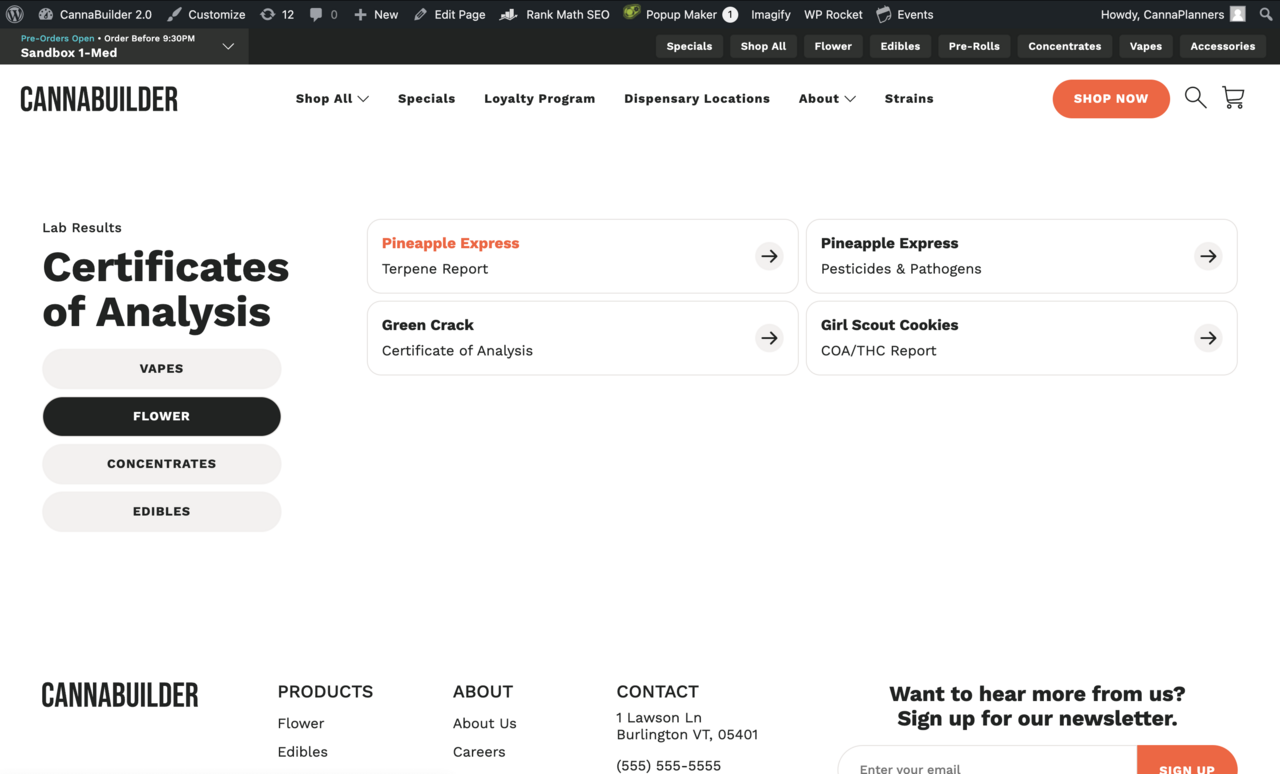
Below are the steps to creating and adding COAs:
Add Files to Library
Log into WP Admin for your website
On the left hand side menu, navigate to 'Media Library'
Click the 'Add New Media File' button or Drag and Drop your COA File into the Media Library*
*Note: COAs should be uploaded in PDF Format
Create COA Groups
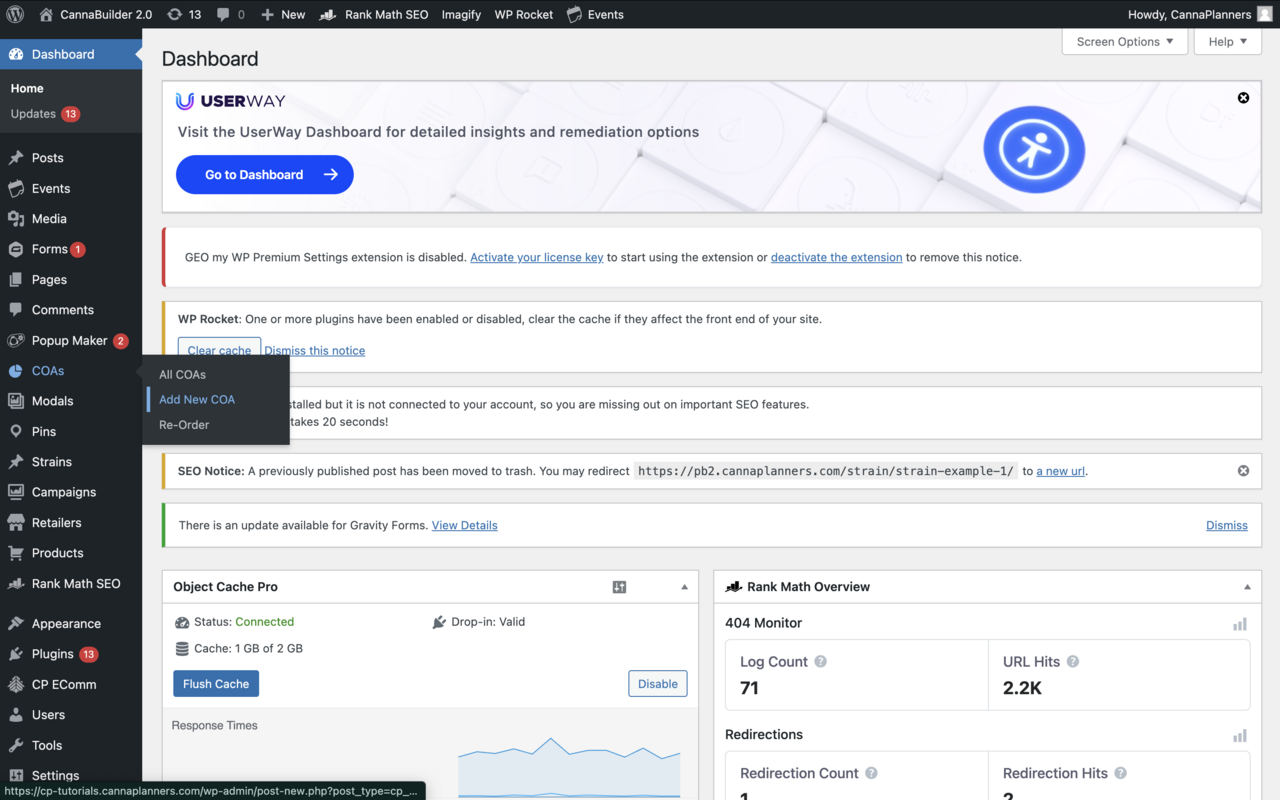
On the left hand side menu, navigate to "COAs"
Hovering over the 'Posts' tab, you will see a secondary menu:
All COAs: List of COAs, can add/edit COAs here.
Add New COA: Shortcut to importing new COA
Re-order: Re-order COAs
Click 'Add New COA'
In the Page Builder for COAs, you can edit/add the following:
Title: Flower (Product Category)
The File Title: Pineapple Express (Product Name)
Subtitle: Terpene Report (the type of report, i.e. Pesticides/Pathogens, THC, Certificate of Analysis, etc.)
Add File: Select the file from your Media Library
URL: If you are not uploading a PDF to download, you can add a link to a COA that is hosted externally (Google Drive, Drop Box, One Drive, etc.)
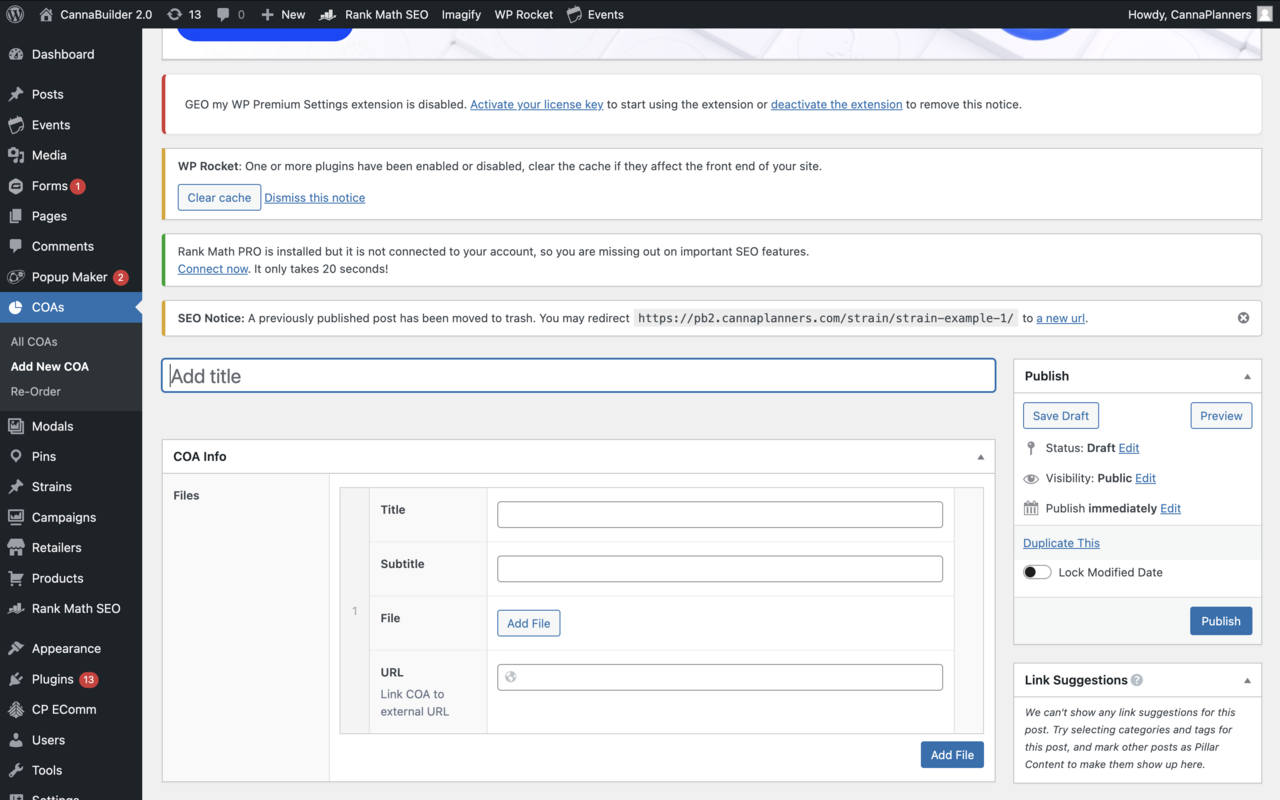
To add another File to the group, click the blue 'Add File' button in the lower-right corner
The next file you add would be another flower product.
Add all of the Reports needed for the Grouping
Click the blue 'Publish' button in the upper-right corner