
Log into WP Admin for your website
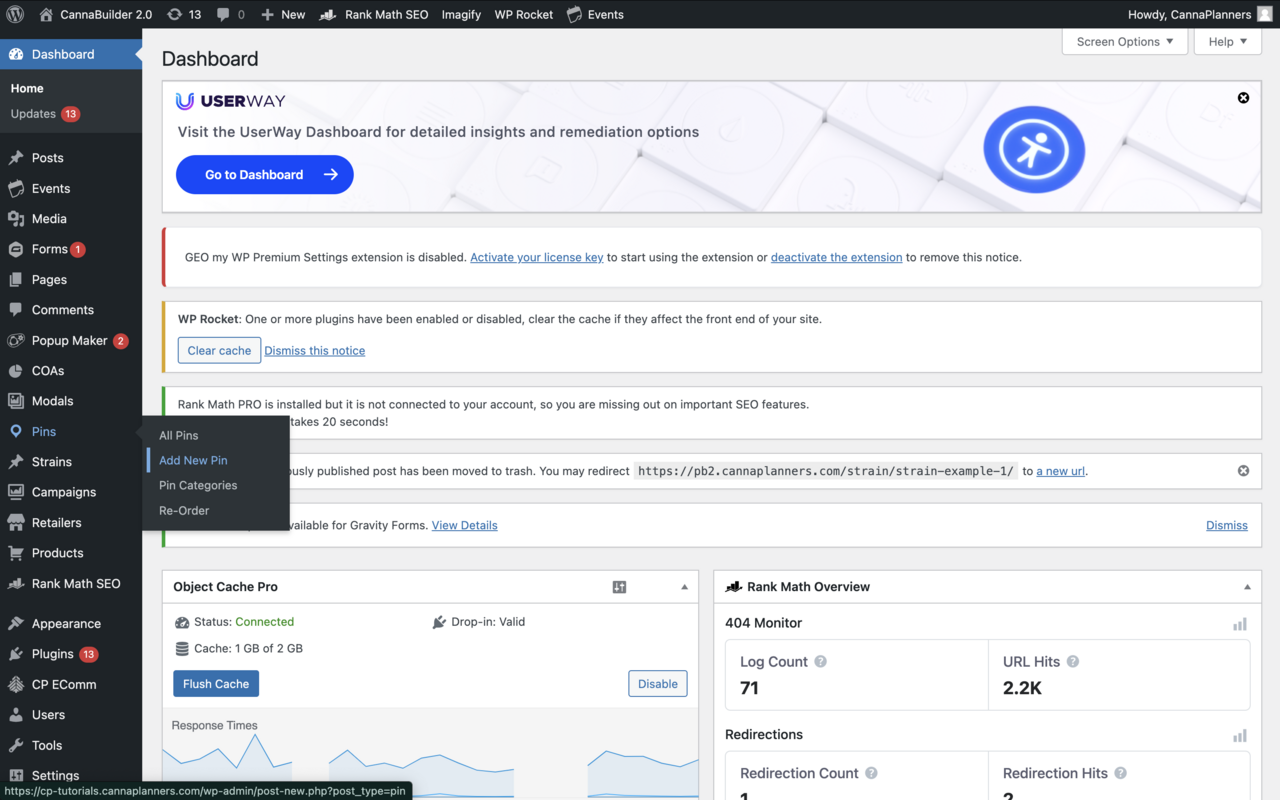
On the left hand side menu, navigate to "Pins"
Hovering over the 'Pins' tab, you will see a secondary menu:
All Pins: List of all stores
Add New Pin: Shortcut to add new store
Pin Categories: Categories for stores (categorize by state, med/rec, product, etc.)
Re-Order: Change order in which stores display on 'Store Locator' Page
Click 'Add New Pin'
There are various sections to add information for the new pin. Only the following sections display on the front end/should be edited.
First, Add Store Name as Title then Add a Category Tag if necessary
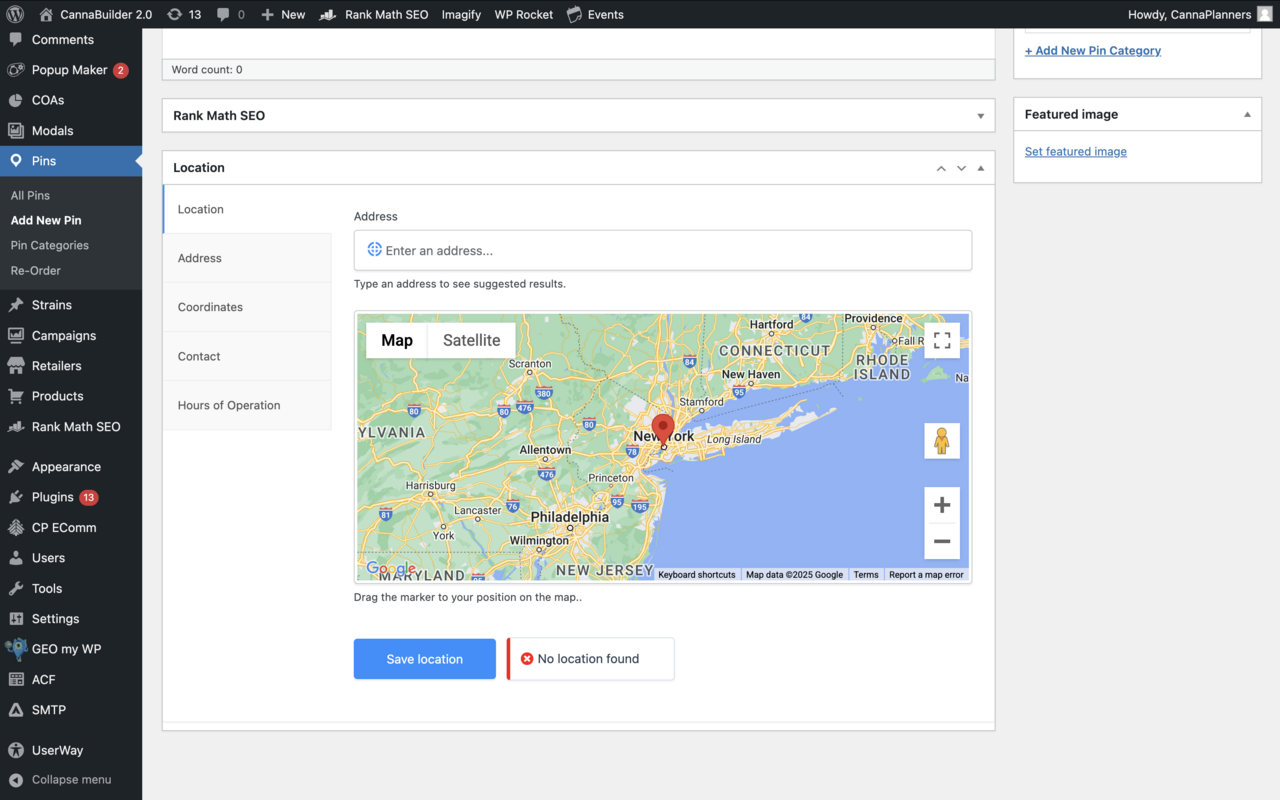
Next, you will use the 'Location' section at the bottom of the page
Location Tab: Enter address into search bar, then click on the verified address that Google Populates
If the address is verified, you will see a small green box at the bottom of the section that says 'Verified'- if the address does not verify, the pin will not display.
Address: Type address in sections
Contact: Add store website
Once complete, scroll back to the top of the page and click the blue 'Publish' button in the corner