
Walkthrough Video: HERE
Objective
This video outlines the steps to effectively create and edit pages using the page builder, ensuring team members can navigate and utilize the available modules efficiently.
Resources
- CannaPlanners Demo Site (with Dutchie Menu) HERE
Key Steps
Introduction to the Page Builder 0:00

Welcome to the page builder training.
Overview of the CannaPlanners demo site and its modules. Link to demo site HERE
Navigating the Modules 0:43

Click on modules or individual pages to view module options.
Understand naming conventions and examples of modules.
Editing a Page 1:45
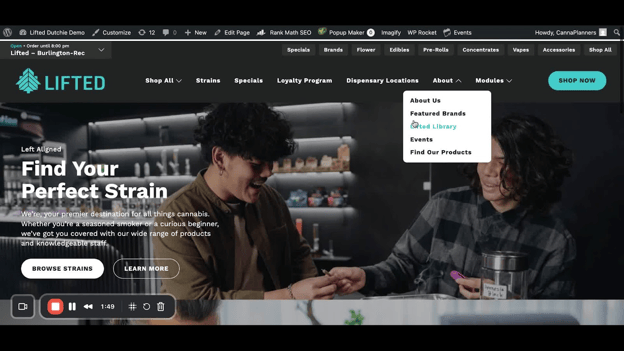
Log into your site and navigate to the homepage.
Click 'Edit Page' to access the page builder.
Understanding Modules 2:21
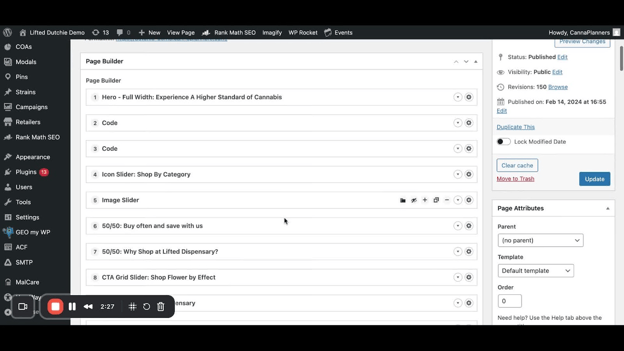
View all modules listed on the homepage.
Each module can be edited by clicking the down arrow.
Editing Module Content 2:56
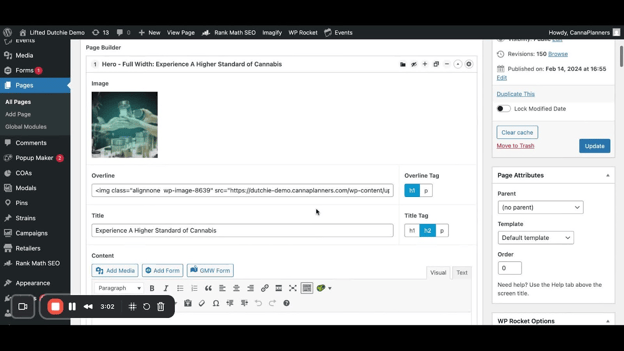
Edit overline, title, and content within the module.
Swap out images by removing the current image and adding a new one from the media library.
Module Settings 4:03
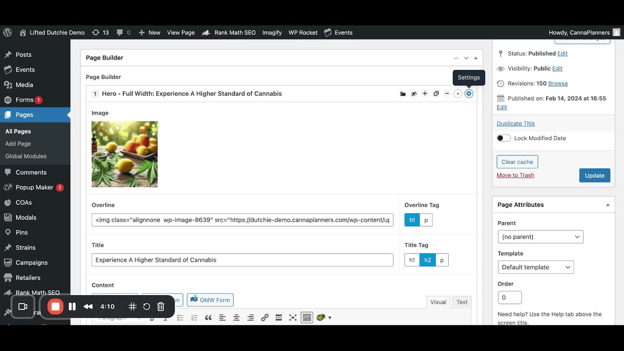
Access module settings via the gear icon.
Adjust background color, text color, and alignment options.
Previewing Changes 5:03
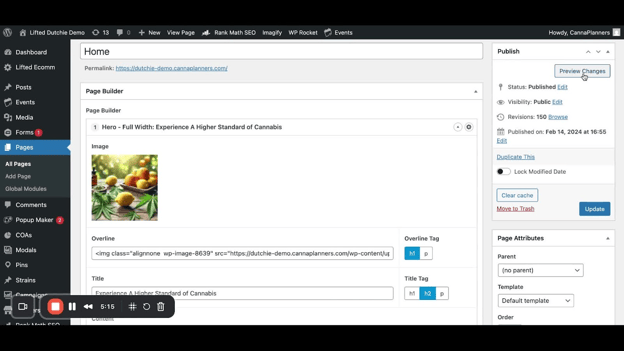
Use the 'Preview Changes' button to view edits before updating the live site.
Duplicating and Hiding Modules 5:33
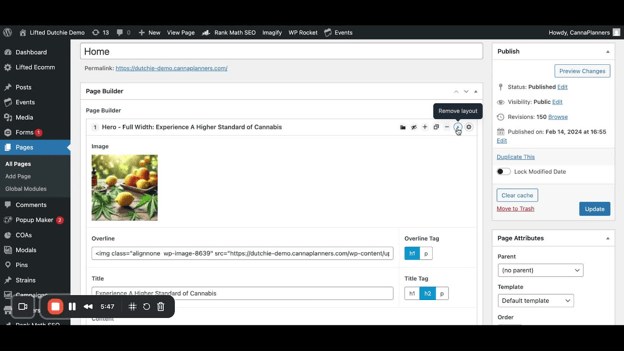
Duplicate a layout to copy a module with its content.
Hide a module using the eye icon for content that is not ready.
Copying and Pasting Layouts 6:31
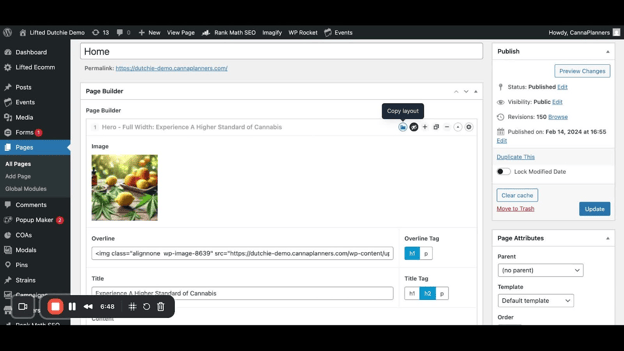
Use 'Copy Layout' to copy a module's code.
Navigate to another page and use 'Paste Layout' to insert the copied module.
Adding New Modules 10:26
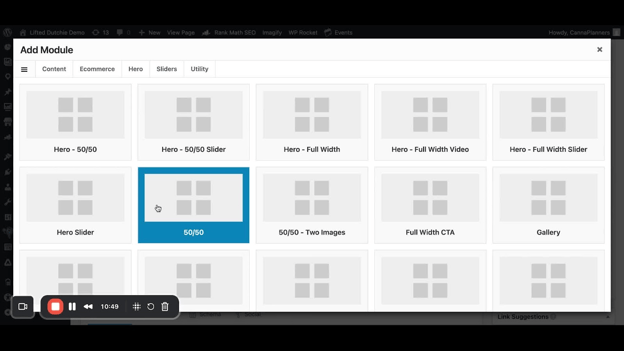
Click 'Add Module' at the bottom of the page to select new modules.
Choose the appropriate module based on the content you want to create.
Creating a New Page 16:13

Click 'Add New Page' to create a draft page.
Start adding modules and content as needed.
Saving and Publishing Changes 17:35
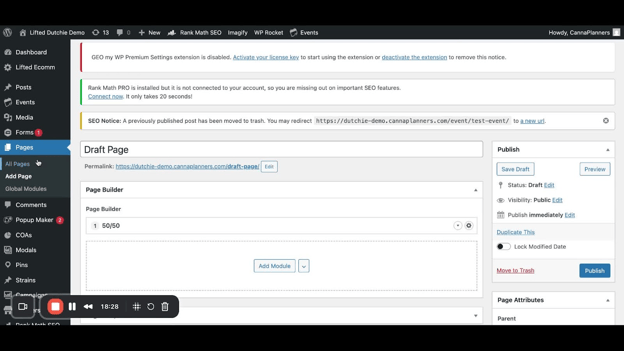
Save your draft to keep changes without publishing.
Click 'Publish' to make the page live.
Cautionary Notes
Always preview changes before publishing to avoid errors on the live site.
Ensure that all images and content are appropriate and ready for public viewing before publishing.
Tips for Efficiency
Familiarize yourself with the module list to quickly identify which modules to use.
Use the copy and paste functionality to save time when reusing modules across different pages.
Regularly save drafts to avoid losing any progress.