
Walkthrough Video: HERE
Objective
This video outlines the steps to edit the navigation menus on your site, including primary, secondary, and footer navigation areas.
Key Steps
1. Accessing the Customizer 0:51


Navigate to the top of your site and click on Customize.
Scroll down and select Menus.
2. Viewing Menu Structures 1:16

In the Menus section, you will see all navigation structures: Secondary, Primary, Primary CTA, and Footer.
Click on the menu you wish to edit or click the crayon icon next to it.
3. Editing the Secondary Menu 1:54

Click on the crayon for the Secondary menu to edit.
To add a new category, click Add Items.
Choose to add a Custom Link and enter the URL and navigation label (e.g., CBD).
Click Add to Menu.
4. Adjusting Menu Item Order 3:23

After adding, the new item will appear at the bottom of the menu structure.
Drag and drop the item to adjust its position in the hierarchy.
5. Saving Changes 3:56

Once satisfied with the changes, click the Publish button at the top to save your changes.
6. Editing the Primary Call to Action 4:11

Click the crayon for the Primary CTA to edit.
Change the navigation label (e.g., from 'Shop Now' to 'Order Ahead').
Remember to click Publish Changes.
7. Editing the Primary Menu 5:14

Click on the Primary Menu to edit.
To add a page, click Add Items and select an existing page from the list.
Use the plus icon to add it to the menu.
8. Nesting Pages 5:39

To nest a page, drag it under another page in the menu structure.
9. Editing the Footer Menu 7:38

Scroll down to the Footer section and click on it.
Use the crayon to edit the footer links.
10. Finalizing Changes 9:26
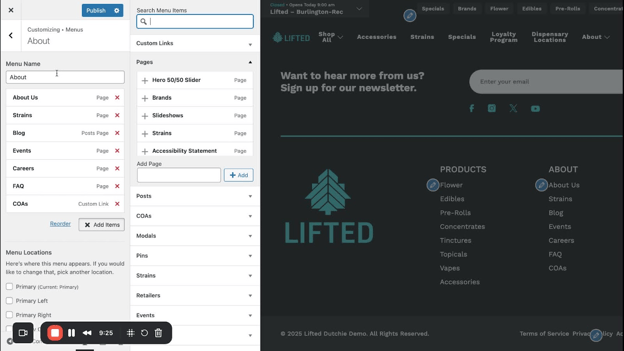
After making all desired changes, ensure to click Publish to save all modifications.
Cautionary Notes
Always double-check the URLs and labels before publishing changes to avoid broken links.
If unsure about any changes, consult with a team member before proceeding.
Tips for Efficiency
Familiarize yourself with the crayon icons for quick access to edit specific menus.
Use drag-and-drop functionality to quickly rearrange menu items without needing to click multiple buttons.