
Log into WP Admin for your website
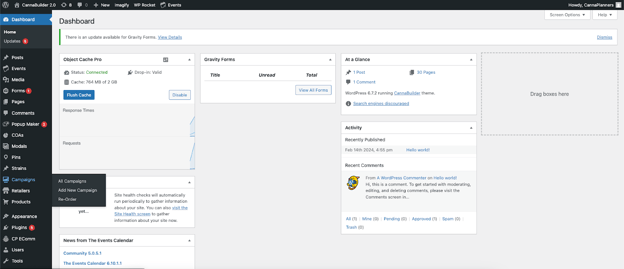
On the left hand side menu, navigate to "Campaigns"
Hovering over the Campaigns tab, you will see a secondary menu:
All Campaigns: List of campaigns, can add/edit campaigns here.
Add New Campaign: Shortcut to creating a new campaign
Re-Order: Change order of campaign
Click "All Campaigns"
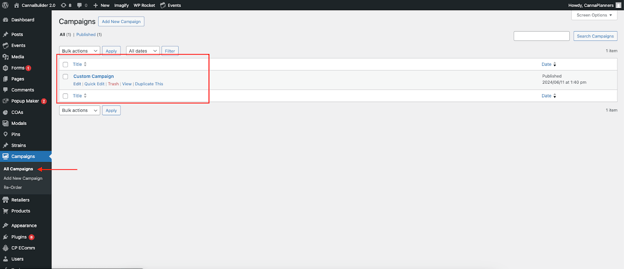
Once you’re on the campaigns list, you’ll see all the custom campaigns created on your site. Hover over the campaign you want to add and click "Edit".
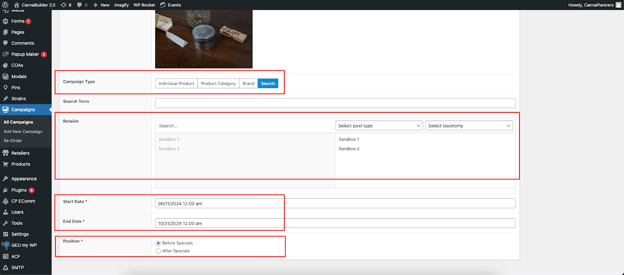
From here, you’ll have to check 4 various sections to ensure the campaign displays on the shop page before other specials. The sections you will likely edit are as follows:
Campaign Type: Select “Search”
Retailer: Select locations you want campaign displayed
Start Date: Select date your campaign will show on your site
End Date: Select date your campaign will be removed from your site
Position: Select “Before Specials” (to display before dutchie specials)
Once complete, navigate back to the top of the page and click the blue 'Publish' button in the corner.