
Log into WP Admin for your website
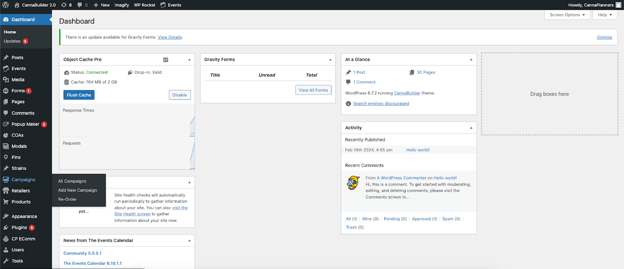
On the left hand side menu, navigate to "Campaigns"
Hovering over the Campaigns tab, you will see a secondary menu:
All Campaigns: List of campaigns, can add/edit campaigns here.
Add New Campaign: Shortcut to creating a new campaign
Re-Order: Change order of campaign
Click 'Add New Campaign’
When you add a new campaign, you will see various sections to add information. The sections you will likely edit are as follows:
Title: Title of Campaign
Description: Body of Campaign
Button: Add CTA links
Image: Add image to display
Campaign Type:
Individual Product: Highlight a specific product
Product Category: Highlight a specific category of product
Brand: Highlight a specific brand
Search: Highlight an event/experience
Retailer: Select the locations for campaign
Start Date: Set start date and time (campaign won’t show until set date)
End Date: Set end date and time (campaign won’t disappear until end date)
Position: Select position of campaign in slider
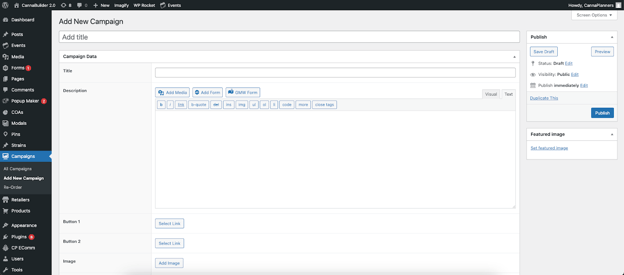
Once complete, navigate back to the top of the page and click the blue 'Publish' button in the corner.