
Walkthrough Video: HERE
Objective
This video outlines the steps to customize the footer settings on the Dutchie demo site, ensuring a consistent and appealing footer across all pages.
Key Steps
1. Accessing Footer Settings 0:43
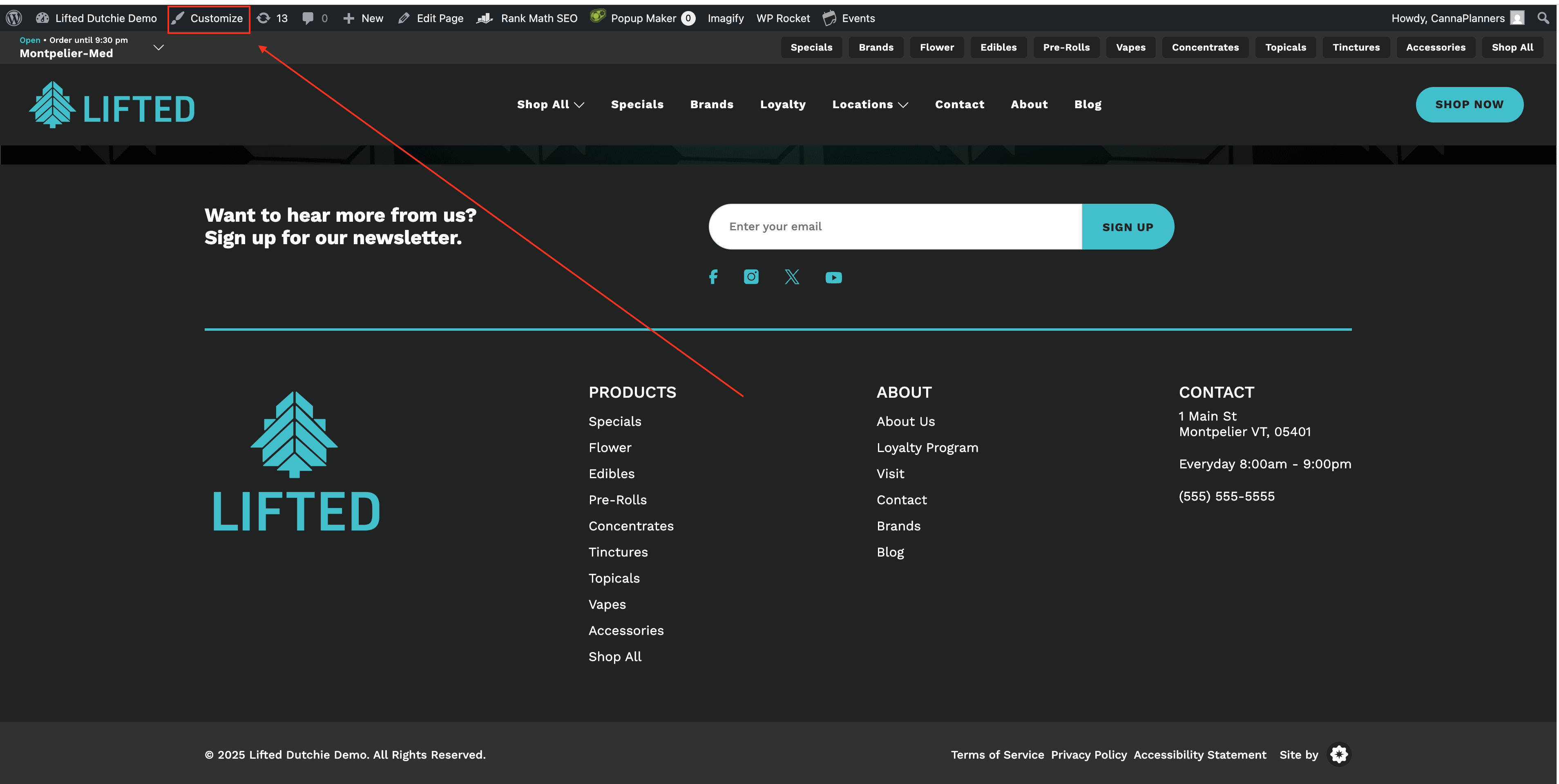
Scroll to the bottom of the Dutchie demo site to view the current footer layout.
Navigate to the customizer by clicking on 'Customize'.
Select 'Site Layout' and then click on 'Footer'.
2. Editing Footer Logo 1:21
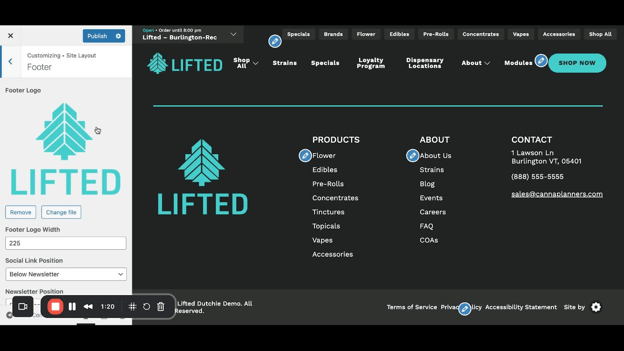
Locate the 'Footer Logo' section.
To change the logo, remove the current logo and upload a new file.
Adjust the footer logo width to ensure it fits well with the footer layout.
3. Adjusting Social Link Position 2:11
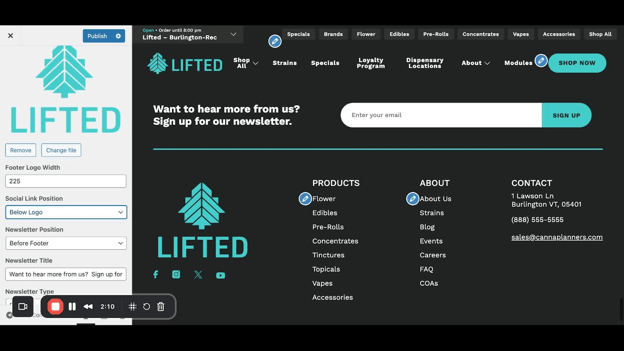
Choose the position for social links (e.g., below the newsletter or below the logo).
Preview the layout to see how it looks with the selected position.
4. Configuring Newsletter Position 3:09
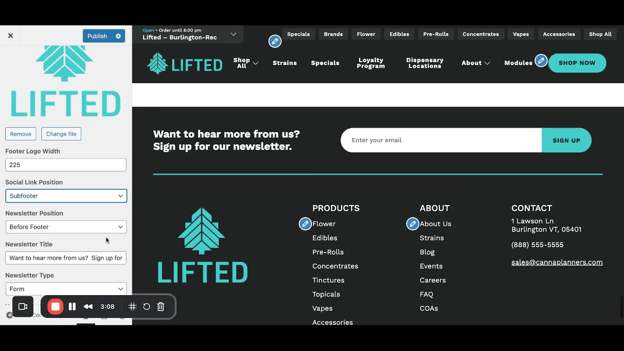
Decide where to place the newsletter section (before the footer or inside the footer).
Adjust the newsletter text to reflect your desired message (e.g., 'Join our inner circle').
5. Setting Up Newsletter Sign-Up Options 4:18
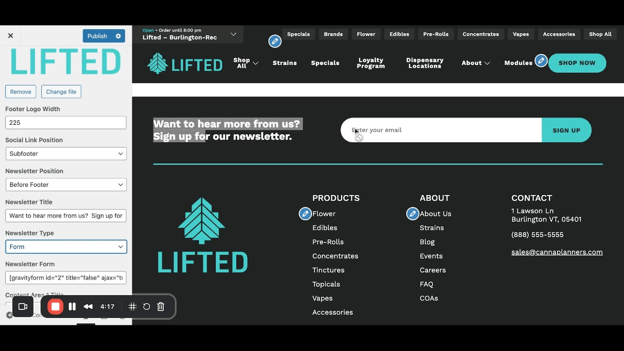
Choose between a newsletter form or a button.
If using a button, enter the URL for the sign-up page and customize the button text.
6. Editing Content Area Titles 5:16
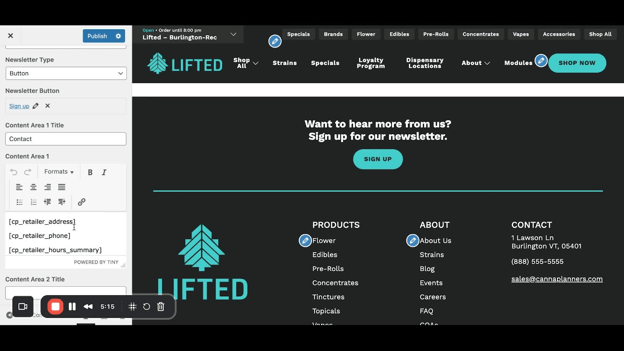
For Dutchie users, ensure that your address and phone number are correctly pulled from the Dutchie settings.
If not using Dutchie, manually enter your contact information.
7. Adding a Disclaimer 6:12
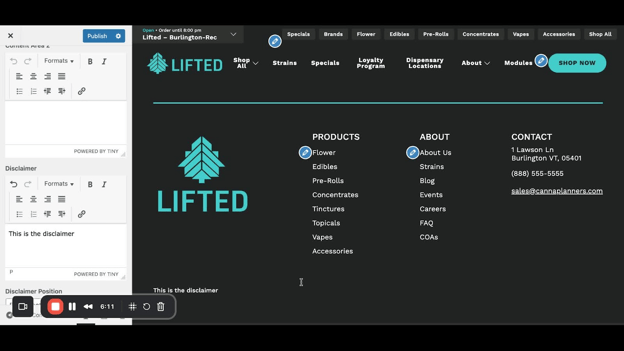
Enter any necessary disclaimers in the designated area.
Choose the position for the disclaimer (below footer or below the logo).
8. Customizing Footer Links 7:01
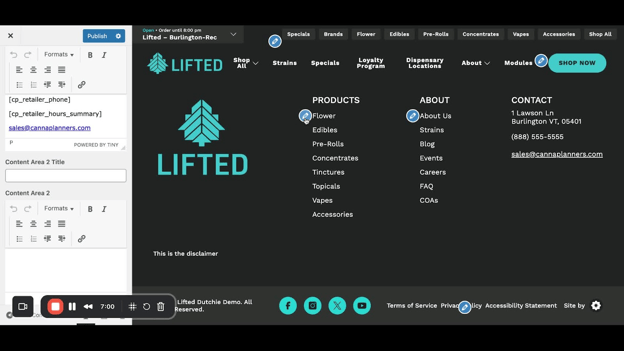
Click on the blue crayon icon next to product categories to edit the menu.
Remove or add categories as needed by clicking 'Add Items' or removing existing ones.
9. Editing Quick Links 9:03
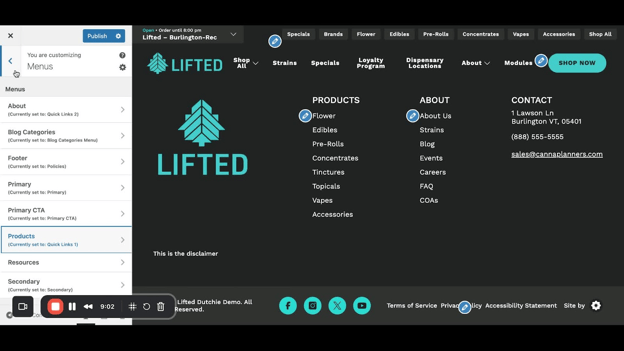
Click the crayon icon next to Quick Links to access the editing menu.
Add or remove links to pages as necessary.
10. Publishing Changes 9:56
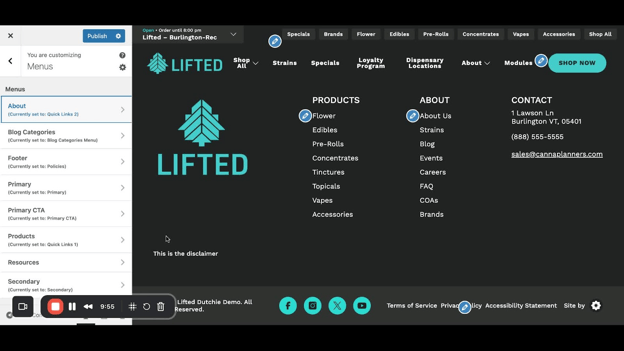
Once all changes are made, click 'Publish' to save your updates.
Cautionary Notes
Ensure that any changes made to the footer are consistent with the overall branding of the site.
Double-check all links for accuracy before publishing.
Tips for Efficiency
Use preview mode frequently to see how changes will appear on the live site.
Keep a list of common footer elements to streamline future updates.